MiniPlace 
Creating a MiniPlace on Cloud
Tools and Skills:
- Flask
- Gunicorn
- WebSockets (SocketIO)
- AWS (EC2)
- React
- TypeScript
- Python
MiniPlace (I’m not sure how long I’ll be keeping it up)
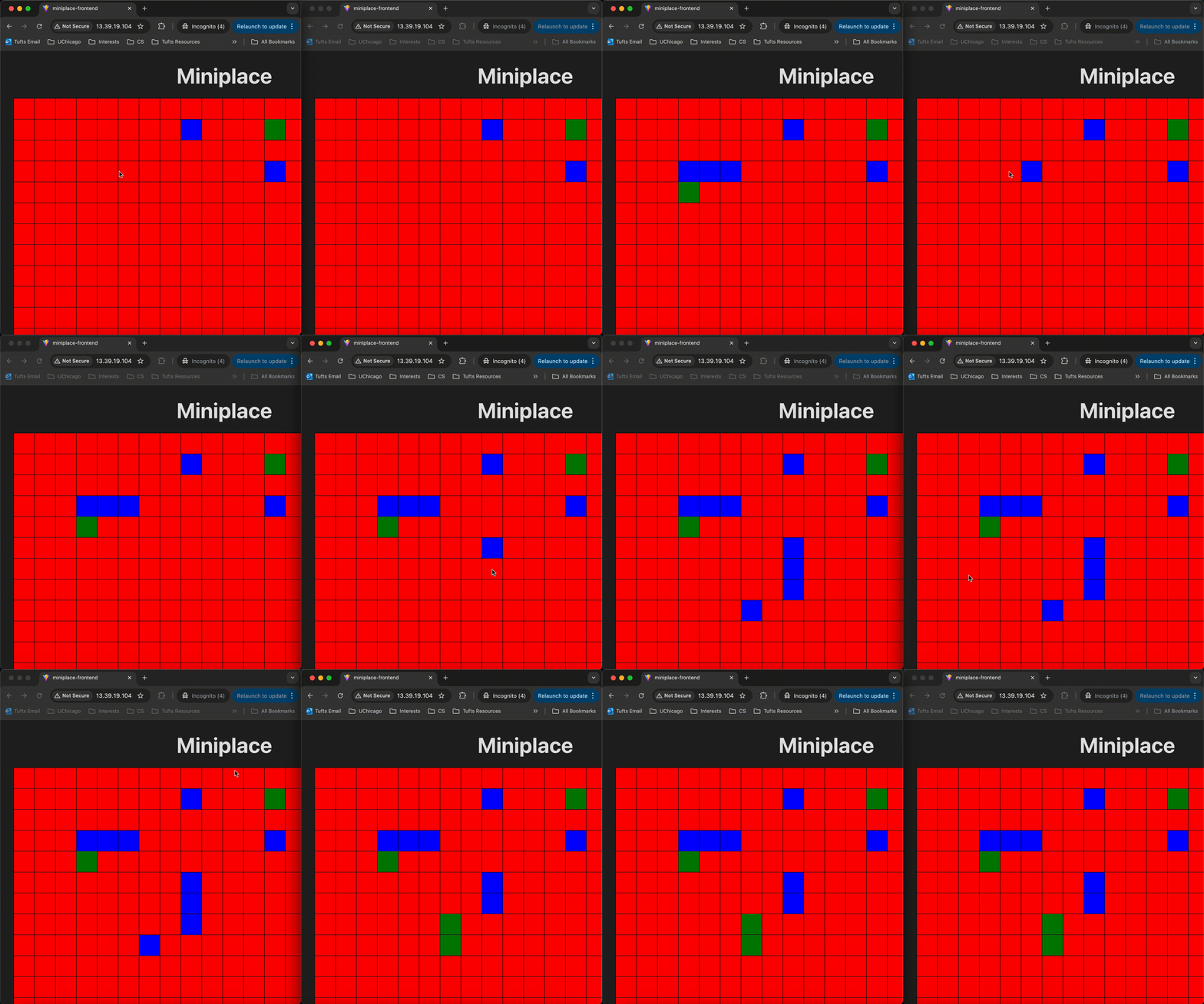
This was my second exploration of WebSockets, but this time, in the realm of Python and React, using SocketIO. I was inspired by OCMB, and wanted to create something similar. Not only this, but I could also explore setting up a backend server in the CLOUD. I knew of AWS Cloud, but I never actually hosted or set something up there, so this was a perfect chance.
Local Setup
Using Flask and SocketIO, I set up the server to hold an uint8 array with 10000 indexes. I wanted it to hold 3 values (that being RGB) instead of the binary 2, which is seen in OCMB. This would still keep the broadcasted data small, in my eyes.
The backend was designed to emit the board state via SocketIO every 5 seconds. Any listeners, those being frontend clients, would listen to the “update” topic and interpret the array, adjusting how the MiniPlace board looked based on the number in the array. Like in OMCB, I also integrated react-window so the browser wasn’t rendering ALL cells every time.
I decided to use eventlet to handle the background process of emitting. From what I researched, this was recommended as opposed to having a Python thread do this.
I was able to get this up and running pretty quickly. Locally, it seemed very smooth!
But I wanted to go beyond just this. Make it a legitimate server. Flask’s built-in server is not built for prod, typically only used for local builds and testing. To upgrade, we need to use Gunicorn, which should be better suited for prod-level traffic (even though I probably wouldn’t run into it).
Upgrading to a REAL Server
I installed Gunicorn, setup a wsgi.py page (finally got me to understand what a “WSGI” even was and the purpose of those files). Lastly, I created the dockerfile and pushed the image up to my Dockerhub repo.
Next step was to try and move this to a real server. My initial plan was to figure out AWS and just leave the backend there on an EC2 instance (my AWS knowledge was pretty limited to EC2 being for that). I figured I could also just host the frontend in Github Pages. The intent was to have a clear separation between the frontend and backend. Only later would I find out this to be a mistake (ominous foreshadowing).
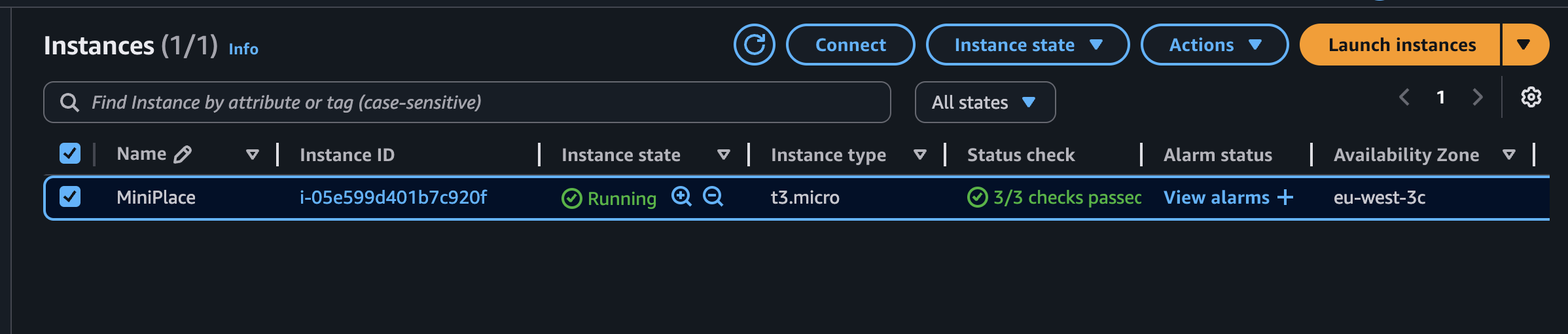
So I went about learning and setting things up in AWS. I created an account there and started an EC2 instance - using an Ubuntu t2.micro server. I SSH’d in and pulled the docker image.
The backend server/docker image wasn’t equipped to just be run straight out of the box, as that wouldn’t have been safe. So came time to learn Nginx and reverse proxying!
I installed nginx and created the config file. Then proceeded to test and load it. But there came my first issue: the public IP/URL wasn’t working! It displayed the default nginx page, but any calls to the /api gave me a 404 Error.
I was confused, because performing curl to 127.0.0.1:8000/api worked as expected, so something was definitely not working on the nginx side. Even running
sudo nginx -T | grep <my endpoint>was showing the correct configurations as expected!
Took me a while, but I realized it really came down to just deleting the default config file… Turns out because the server_name was clashing, it prioritized the default config. Since I wasn’t setting up HTTPS, I left that field as:
`server_name: _;`, which coincidentally clashed with what the default config had. That issue wasn’t really that obvious to me, but glad it was resolved.
Deleting it caused nginx to use the actual config file I had created. And testing the public IP yielded what I wanted! My backend server was finally working as expected!
Connecting the Frontend
As according to my original plan, I wanted Github pages to host my frontend. My EC2 instance was setup to only allow SSH and HTTP inbound (I didn’t want to bother setting up HTTPS right now). So I assumed I could force my frontend to send HTTP requests and use WS rather than WSS.
So I setup a Github actions workflow and readied up Github pages. Only to see this:
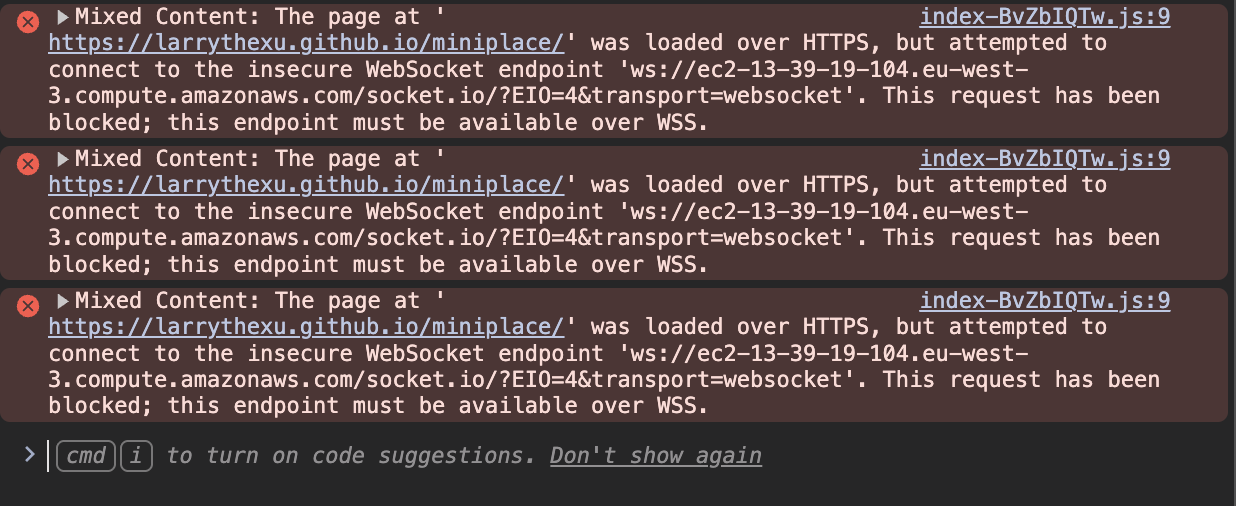
So Github Pages forces HTTPS and WSS. I should’ve known.
Moving the Frontend
After all this work, I decided I might as well just put the frontend into my EC2 instance and have nginx serve it. It would simplify things.
So I built the page and configured nginx to serve it! And fortunately, it was up and running!
Absolutely a rewarding experience to see working. There’s also so much to learn about nginx. So I’ll be making sure to do more reaserch on that.
Nginx Config
This was what the Nginx reverse proxy config ended up looking like:
    server {
        listen 80;
        server_name _;  # use EC2 IP for now

        root /var/www/frontend;
        index index.html;

        # Frontend
        location / {
            try_files $uri $uri/ /index.html;
        }

        # REST API: /api/*
        location /api/ {
            proxy_pass http://127.0.0.1:8000;  # Gunicorn inside Docker
            proxy_http_version 1.1;

            proxy_set_header Host $host;
            proxy_set_header X-Real-IP $remote_addr;
            proxy_set_header X-Forwarded-For $proxy_add_x_forwarded_for;

            proxy_buffering off;
        }

        location /testapi/ {
        return 200 "Nginx routing works\n";
        }

        # SocketIO WebSockets: /socket.io/
        location /socket.io/ {
            proxy_pass http://127.0.0.1:8000;  # Gunicorn inside Docker
            proxy_http_version 1.1;
            proxy_set_header Upgrade $http_upgrade;
            proxy_set_header Connection "upgrade";

            proxy_set_header Host $host;
            proxy_set_header X-Real-IP $remote_addr;
            proxy_set_header X-Forwarded-For $proxy_add_x_forwarded_for;

            proxy_buffering off;
        }
    }
I’m sure there’s stuff in here that could use tweaking to be the industry standard, but hey at least it works!